
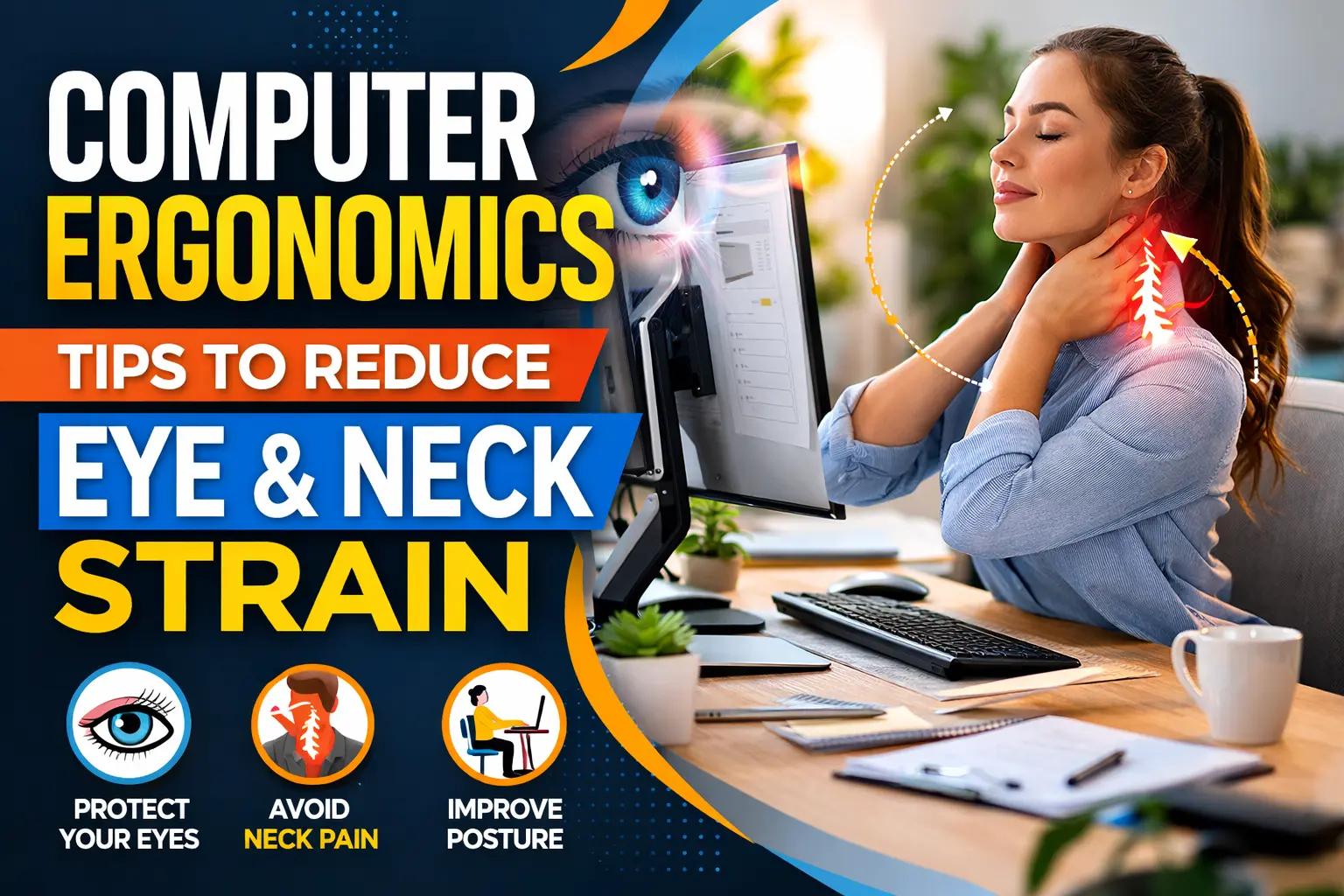
Many people use computers for hours daily, whether it is for office work, remote work, or study. Whilst digital tools make work more manageable, spending long hours staring at a screen can often result in eye strain, stiffness in the neck and headaches. These issues typically occur due to bad posture or poor setup of the workstation.
Computer ergonomics is concerned with the layout of your workspace in a manner that works with the body and puts less strain on it when using a computer. Simple adjustments such as monitor height, chair position and distance from the screen can make all the difference. Understanding and implementing some basic computer ergonomics tips can help to create a healthier work environment and relieve unnecessary eye and neck discomfort.
Why Computer Ergonomics Matters for Daily Computer Users
Computer use is a daily routine for many people, from office workers to students and remote workers. Spending lengthy periods in front of a screen can put continuous stress on the eyes, neck, and shoulders. Without computer ergonomics, minor discomforts can eventually lead to chronic pain and fatigue.
A well-arranged workstation helps the body to maintain a natural position and relieve it of unnecessary strain during computer tasks. When the screen, chairs and keyboards are set correctly, users can work more comfortably and can maintain their concentration for a longer time. Without regard to physical health, paying attention to computer ergonomics makes productivity and overall work efficiency better.
Common Signs of Poor Computer Ergonomics
Poor workstation setup can cause physical discomfort, which can be gradually overlooked until it becomes persistent. When computer ergonomics are ignored, the body learns to adapt to the poor posture, imposing additional stress on the eyes, neck, shoulders and back. Over time, these little strains can become long-term health problems, impacting comfort, focus, and productivity. We need to recognize the early warning signs to stop these problems from getting worse, since it is very simple to make some changes regarding posture, height, and desk arrangements.
Common signs of poor computer ergonomics include:
- Eye strain or blurred vision after extended screen use
- Dry or irritated eyes due to reduced blinking
- Neck stiffness or pain from looking down or craning forward
- Shoulder tension from improper keyboard or mouse placement
- Headaches caused by prolonged screen exposure
- Difficulty maintaining a comfortable posture during long work sessions
These signs indicate that your workspace may need adjustment. Paying attention to them early can help you maintain comfort and prevent long-term health issues.
Adjusting Monitor Position to Protect Eyes and Neck
Proper monitor placement is one of the most important areas of computer ergonomics. Positioning your screen at the proper height and distance helps eliminate eye fatigue and neck pain. Ideally, the top of the monitor should be at or just below eye level so that your neck can be in a neutral position.
The screen should be approximately an arm’s length away, so that you can view the content comfortably and do not have to lean forward. Minimizing glare from windows or overhead lights will also help protect your eyes. Small changes, such as a monitor tilt or a stand, will make a big difference in helping to minimize fatigue and encourage long-term neck and eye health.
Proper Sitting Posture for Computer Work
Maintaining proper sitting posture is vital for proper computer ergonomics and for long-term comfort. Sit with your back straight and shoulders relaxed so that your spine remains naturally aligned. Your feet should be on the floor or on a footrest and your knees should be at an angle close to 90 degrees.
Position your hips deeply in the chair to provide support for your lower back curves and use an ergonomic chair if possible. Keep your elbows against your body and bend at approximately 90 degrees while typing. This posture puts less strain on the neck, shoulders and back, helping to prevent fatigue and musculoskeletal discomfort when working at the computer for long periods.
Keyboard and Mouse Placement for Comfortable Work
Proper keyboard and mouse placement is one of the most important aspects of computer ergonomics that can help prevent wrist, shoulder and arm strain. Your keyboard should be set so that your elbows are close to your body and bent at an angle of about 90 degrees. Keep your wrists straight and do not rest your wrists on the desk when you are typing or use a soft wrist support if necessary.
The mouse should be put within easy reach, at the same level as the keyboard, to avoid overextension. Small changes like putting the keyboard at a different angle or using an ergonomic mouse can make a lot of difference in improving comfort and reducing the risk of repetitive strain injuries while using the computer for longer durations.
Reducing Eye Strain During Long Screen Sessions
Reducing eye strain is a critical part of computer ergonomics, particularly for people who spend extensive time in front of a computer screen. Start by calibrating the brightness and contrast of your monitor to match the illumination of the environment to reduce glare and reflections. Make sure your work environment is well-lit, but not artificial light directly from above the screen.
Follow the 20-20-20 rule: look at something 20 feet away for at least 20 seconds every 20 minutes to rest the eye muscles. Regular blinking can help prevent dryness and irritation, while occasional eye exercises can keep the focus flexible. These simple practices help to protect your eyes and make your eyes more comfortable when you have to work on your computer for a long time.
The Role of Regular Breaks in Computer Ergonomics
Taking regular breaks is an easy yet effective solution to improve computer ergonomics and to avoid strain. Continuous use of the screen can cause fatigue, discomfort in the eyes, and strain in the neck and shoulders. Short and frequent breaks give your body time to reset, to relieve stress on the muscles and to reduce mental fatigue.
As simple as taking a few minutes to stand, stretch or walk around may do wonders for circulation and posture. Including eye breaks, such as looking away from the screen or staring at distant objects, also helps to reduce eye strain. By scheduling regular breaks during the day, you are supporting physical comfort and productivity, allowing for long computer sessions to be healthier and more sustainable.
Simple Workspace Changes That Improve Computer Ergonomics
Small changes in your work area can make a big difference in computer ergonomics and comfort. Using a monitor stand or a laptop riser to keep the computer screen at eye level reduces neck strain. Organizing your desk so that the items you use all the time are within easy reach prevents awkward stretching and shoulder tension.
The clutter-free workspace provides the opportunity for better posture and movement while working. Adding supportive accessories like an ergonomic chair, keyboard tray or wrist rest can further increase comfort. Even simple adjustments, when incorporated into a productive workstation, add up to a healthier and more efficient workspace which can help in reducing eye fatigue, neck pain, and long-term musculoskeletal problems.
Computer Ergonomics Tips for Remote and Hybrid Workers
Remote and hybrid workers often have issues with the correct computer ergonomics because of the improvisation of home setups. Without the ergonomic work station, the neck, back and eyes can suffer strain from prolonged computer use. Small changes and mindful practices can make a big difference in improving comfort and productivity while preserving long-term health.
Tips for remote and hybrid workers:
- Use an adjustable chair and desk to support good posture
- Position your monitor at eye level and keep the keyboard/mouse within reach.
- Take regular breaks to stretch and relax muscles.
- Use portable ergonomic tools like laptop stands or external keyboards.
- Maintain a clutter-free workspace to allow natural movement.
By following these strategies, remote workers can reduce discomfort and create a healthier home workspace.
Long-Term Benefits of Practicing Computer Ergonomics
Practicing proper computer ergonomics has substantial long-term benefits on both the physical health and productivity of workers. Maintaining correct posture, having the monitor at the right height and even keeping these items at the right distance from the keyboard and mouse ensures that neck, back and shoulder pain is minimized.
It also helps avoid eye strain, headaches and repetitive strain injuries over time. A well-designed workspace helps to encourage better focus, efficiency, and overall comfort when working for long sessions. Over months and years, these small changes lead to better musculoskeletal health, less fatigue, and a better time in the workplace. Prioritizing the ergonomics of computers is an investment in long-term health and sustainable productivity.
Conclusion
Improving computer ergonomics is an important part of decreasing eye and neck strain, particularly for people who have to sit at a desk for long hours. Simple adjustments, such as the correct height of the monitor, the proper posture of the chair, and the correct placement of the keyboard and mouse, can make a noticeable difference in comfort and productivity. Incorporation of regular breaks, stretches and eye-rest practices further promotes long-term health. By focusing on these details, users can avoid common problems such as eye fatigue, neck stiffness, and headaches. Creating an ergonomic workstation is a small but powerful step toward a healthier, more comfortable and more efficient workday.
FAQs
What is computer ergonomics?
Computer ergonomics is the practice of designing and arranging your workspace so that you are in the right position to use a computer without strain and in a comfortable manner.
How can computer ergonomics reduce neck pain?
Properly positioning the monitor at eye level, keeping the keyboard and mouse at a comfortable distance, and maintaining proper posture can help to minimize any neck and shoulder strain.
How far should my monitor be from my eyes?
Ideally, the monitor should be about an arm’s length away (20-30 inches) to alleviate eyestrain and promote a neutral neck position.
What is the best posture for long computer sessions?
Sit with your back straight, shoulders relaxed, elbows bent at 90 degrees, feet on the floor. Keep the spine in line and refrain from leaning forward.
How often should I take breaks to protect my eyes and neck?
Take a short break every 30-60 minutes. Stand, stretch or follow the 20-20-20 rule: Every 20 minutes, look at something 20 feet away for 20 seconds.